VCF to CSV Converter
Turn a .vcf contacts file into a CSV or Excel spreadsheet.

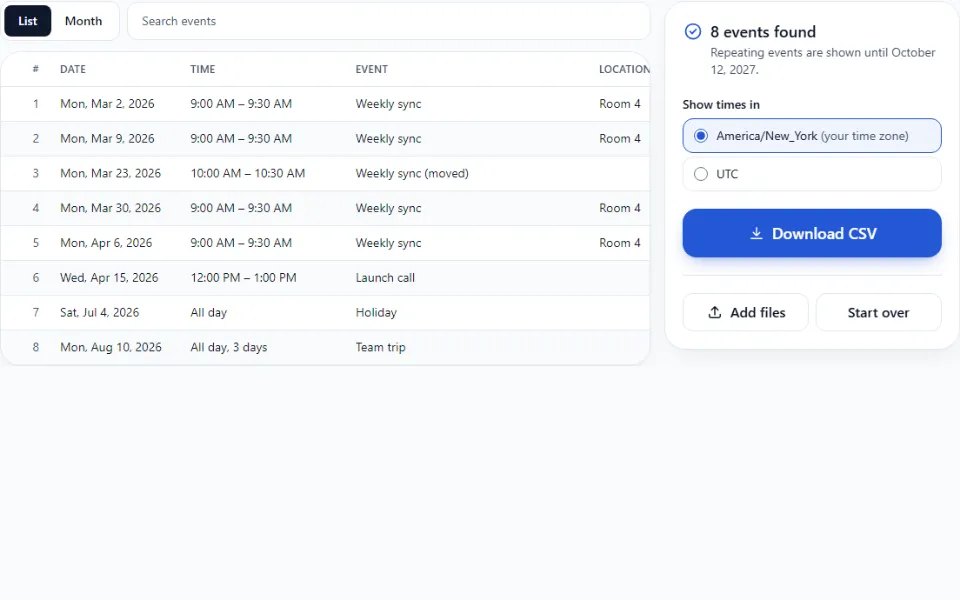
This viewer opens .ics calendar files and shows every event in a list or a month view, with repeating events and time zones worked out. It merges several files into one and exports events to CSV. Nothing is uploaded: it runs in your browser.
Add your file
Drop your .ics file onto the box above, or tap Choose files. You can add several calendars at once.
Pick a view
Switch between List and Month. Search the list, or tap a day in the month view to see its events.
Check the time zone
Times are shown in your time zone. Use Show times in to see them in another zone from the file.
Download
Tap Download CSV for a spreadsheet, or Merge into one .ics to combine several calendars.
Already have an .ics file? Skip ahead. If not, here's how to get one.
.zip file..ics file. Add them all here..ics file..ics (often called invite.ics), then add it here.You see every event from your files, one row per occurrence. Repeating events appear on each of their dates, with moved and skipped dates already applied.
| Download | What you get | Best for |
|---|---|---|
| CSV | One row per occurrence: title, start and end date and time, all-day, time zone, location, description, repeats, status, file | Spreadsheets, reports, timesheets |
| Merged .ics | One calendar with every event, task and time zone from your files, exact duplicates removed | Importing everything into one calendar app |
The file has no calendar in it. Check that it ends in .ics. A .csv file is already a spreadsheet.
Some exports, such as a full calendar export, come zipped. Unzip the file first, then add the .ics files inside.
Check Show times in. Times follow your device's time zone. If the tool says it couldn't identify a time zone, those events are shown at the time written in the file.
Repeating events are shown up to one year after the latest one-off event. The CSV follows the same rule.
The file may hold only tasks or availability information, not events. Try exporting the calendar again.
Only events with the same ID are treated as duplicates. Copies made by hand usually have different IDs, so both are kept.
No. Nothing is uploaded: your browser reads the file and shows the events on your device. See how to check this yourself.
Times are shown in your device’s time zone. Use Show times in to switch to another zone used in the file. If the file names a zone we can’t identify, those events are shown at the time written in the file.
Each occurrence of a repeating event appears on its own date, including moved and skipped dates. They are shown up to one year after the latest one-off event in your files.
Add all the .ics files, then tap Merge into one .ics. Events that appear in more than one file with the same ID are kept once.
One row per event occurrence: title, start and end date and time, all-day flag, time zone, location, description, whether it repeats, status and the file it came from.
Not directly. Merge or keep your .ics file, then import it in your calendar app. Most calendar apps have an import option for .ics files.
Standard iCalendar (.ics) files, the format most calendar apps export and the format of most meeting invitations.
Turn a .vcf contacts file into a CSV or Excel spreadsheet.
Read an exported chat as bubbles, with photos and voice notes.