VCF to CSV Converter
Turn a .vcf contacts file into a CSV or Excel spreadsheet.

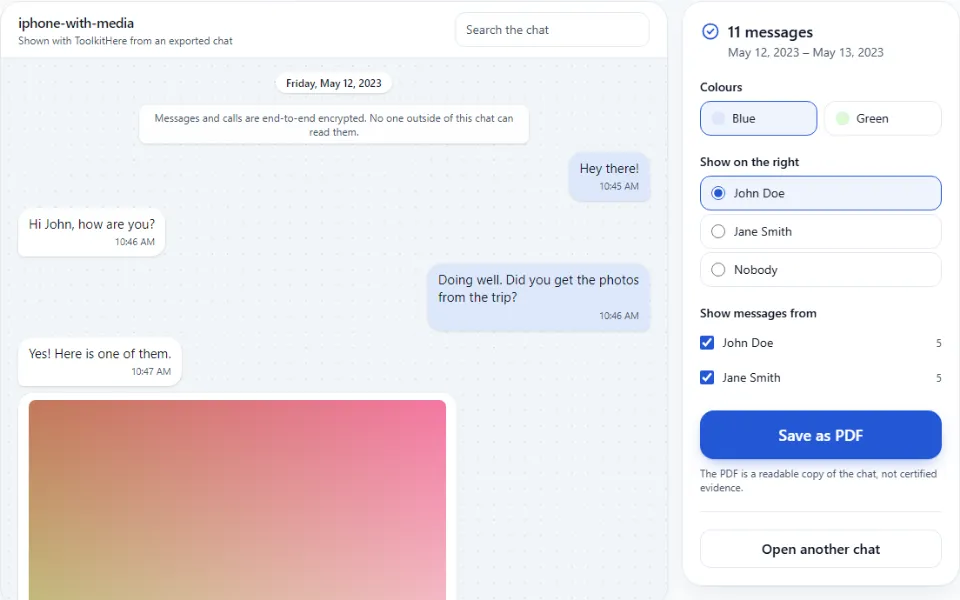
This viewer opens a WhatsApp chat export (.txt or .zip) and shows it as a readable chat, with photos, videos and voice notes in place. You can search, jump to a date, filter by person and save a PDF. Nothing is uploaded: it runs in your browser.
Export your chat
In the app, open the chat and choose Export chat. Include media if you want to see photos and voice notes.
Add the file
Drop the .zip or .txt file onto the box above, or tap Choose file. You can also paste the chat text.
Read and search
Scroll the chat, search for words, jump to a date, or show only some people.
Save a copy
Tap Save as PDF to keep a readable copy of the chat.
Already have the export? Skip ahead. If not, here's how to make one.
The app limits the size of an export. With media, it includes up to the latest 10,000 messages, and only the most recent photos, videos and voice notes. Without media, it includes up to the latest 40,000 messages. Older messages are left out.
You see the conversation as chat bubbles, in order, with a date line for each day. Messages from the person you choose appear on the right; everyone else's appear on the left. In group chats, each name has its own colour.
| .txt (without media) | .zip (with media) | |
|---|---|---|
| Messages | Up to the latest 40,000 | Up to the latest 10,000 |
| Photos, videos, voice notes | Shown as "not included" | Shown in the chat |
| File size | Small | Can be large |
| Best for | Searching and reading text | Seeing the whole conversation |
The file has no chat messages in it. Check that you added the export itself: a .txt file, or the .zip that contains it. Each line of an export starts with a date and time.
The chat was exported without media, or the app left some files out. Export again with media and add the .zip.
If the tool can't tell whether the day or month comes first, it shows a button to switch. Use it if dates look swapped.
Voice notes are Opus audio files. Safari plays them from version 18.4. On an older iPhone or Mac, update the system, or try Chrome or Firefox on a computer.
Use Show on the right to pick your name.
Very long chats with many photos take a while to prepare. Close other tabs, or use a computer.
No. Nothing is uploaded: your browser reads the file and shows the chat on your device. See how to check this yourself.
Export the chat with media included. You get a .zip file. Add the .zip here, and attachments appear inside the chat as you scroll.
The PDF is a readable copy of the export, not certified evidence. If you need a chat for legal reasons, ask a lawyer how it should be collected.
An export doesn’t record who exported it. Use Show on the right to pick whose messages appear on the right.
Some exports don’t make it clear whether the day or the month comes first. If the tool can’t tell, it shows a button to switch between the two.
Yes. Each person’s name gets its own colour, and you can show or hide messages from each person.
Yes. Open Paste the chat text instead and paste the text. Photos can’t be shown from pasted text.
No. ToolkitHere is independent and not affiliated with Meta. It reads the export file you saved from the app.
Turn a .vcf contacts file into a CSV or Excel spreadsheet.
See the events inside an .ics calendar file, merge files, export to CSV.